How to Measure Your Room for Flooring
Learn the trick to getting accurate square footage for hardwood or carpet installation without wasting money.
How to Measure Your Room (Without Buying Too Little Flooring)
I have been there. You are standing in the aisle of Home Depot, staring at a pallet of luxury vinyl plank, and suddenly you get that sinking feeling: "Did I account for the hallway closet? Or the cutout by the door?"
When I was building the logic for RoomyLab, I realized that getting the square footage wrong is the #1 reason DIY renovations go over budget. You either buy way too much and waste money, or worse—you run out of material 90% of the way through and find out the store is out of stock.
Here is my exact method for nailing the measurement every time, whether you are installing carpet, hardwood, or tile.
The Tool List
Before you start, make sure you have the right gear. Don't try to do this with a 12-inch ruler.
- 25-foot Tape Measure: The fat blade kind (standout) is best so it doesn't flop over.
- Laser Distance Measure (Optional): These cost $20 on Amazon and are a life-saver for long walls.
- Graph Paper or RoomyLab: You need a place to write the numbers down immediately. Do not trust your memory.
Step 1: Ditch the Mental Math
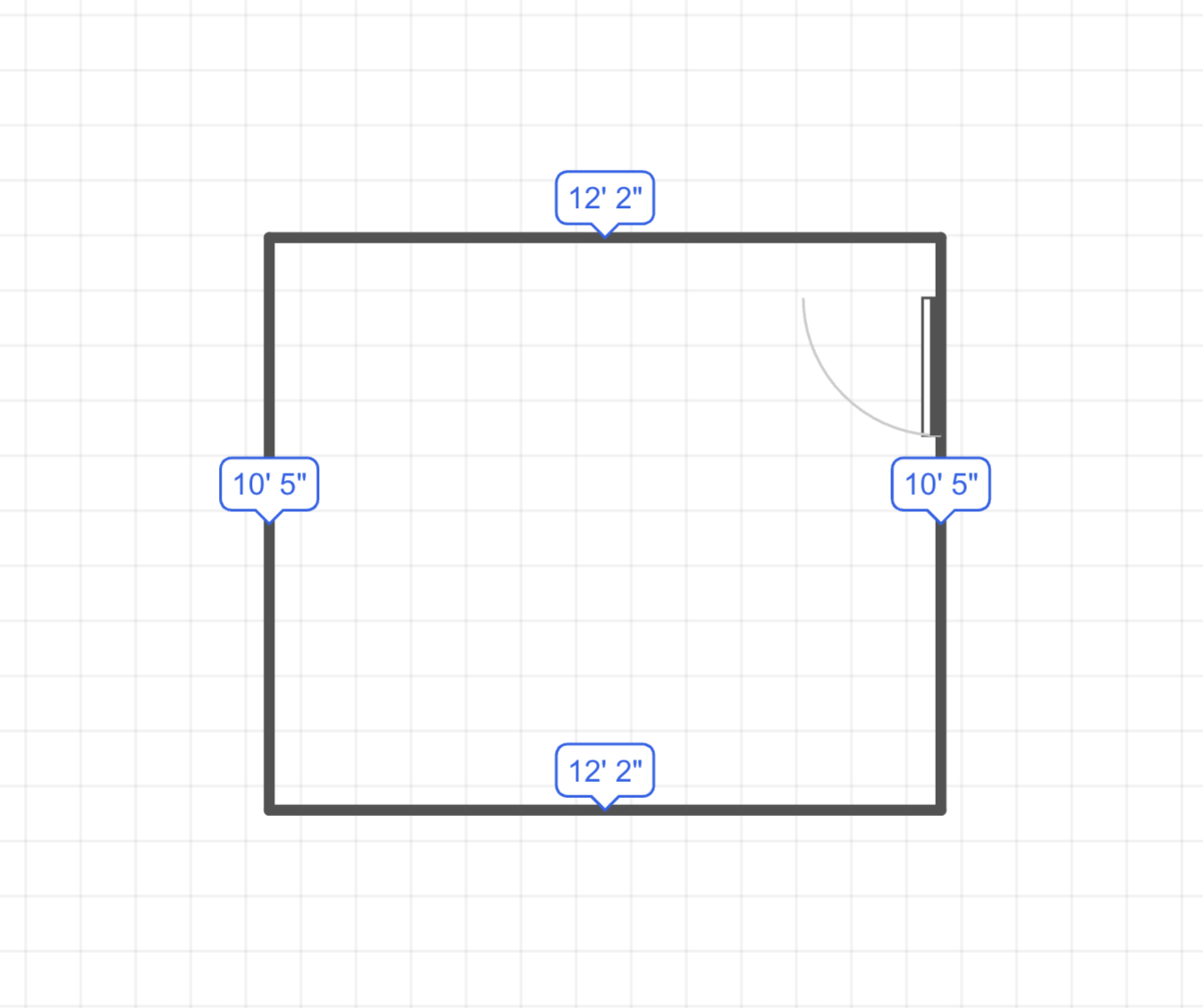
Don't try to hold the numbers in your head. Start by drawing the shape of the room. You can do this on a napkin, but honestly, it is much faster to open RoomyLab and drag out a "Square Room" to start.
It doesn't have to be perfect yet; just get the general shape of the walls, the door location, and any weird alcoves.
Step 2: The "Drywall-to-Drywall" Rule
This is the mistake beginners make: Do not measure from the baseboards.
Baseboards usually add about 0.5 to 0.75 inches of thickness. If you measure from baseboard to baseboard, your room will seem smaller than it actually is.
- The Risk: If your room is 12 feet wide, baseboards might steal 1.5 inches total. Over a whole house, that missing inch adds up to missing boxes of flooring.
- My Rule: Always push the tape measure flush against the drywall. If the baseboard is in the way, measure above it.
Step 3: The "Divide and Conquer" Method
Unless you live in a perfect box, your room is likely a weird shape. Don't try to calculate the area of a complex polygon (unless you love geometry).
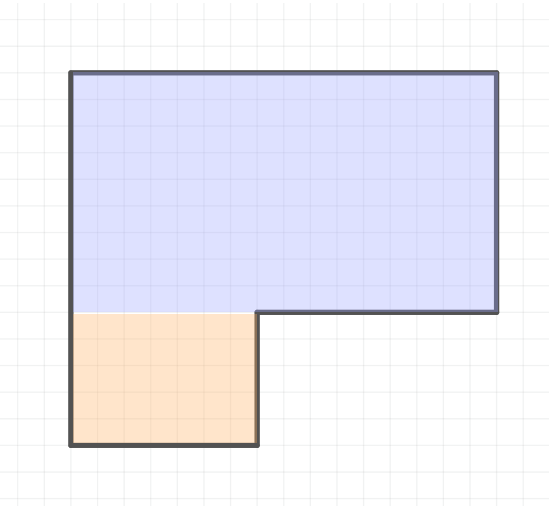
Instead, break the room into simple rectangles:
- Main Floor: Length × Width.
- The Closet: Length × Width (people always forget this!).
- The Entryway: Length × Width.
Real World Example:
- Main Bedroom: 12' × 15' = 180 sq ft
- Closet Nook: 2' × 4' = 8 sq ft
- Total: 188 sq ft
Step 4: The "Opps" Factor (Waste)
In the construction world, we call this the "Waste Factor." You will mess up a cut. You will have an awkward corner that requires scrap pieces. You will find a damaged plank in the box.
- Standard rooms: I always add 10% extra.
- Complex rooms (lots of angles): I add 15% extra.
- Tile: Add 20% if you are doing a diagonal pattern (diamond layout) because the cuts waste more material.
So for our 188 sq ft room? I am buying 206 sq ft of flooring. It is better to return an unopened box than to halt construction for three days waiting for a shipment.
Common Mistakes to Avoid
- Ignoring Door Frames: Remember that flooring usually needs to go under the door jamb. Measure into the center of the doorway, not just to the wall.
- Assuming Walls are Straight: In older homes, walls bow. Measure the width of the room at three points (ends and middle) and take the largest number.
- Not Accounting for Transitions: If you are meeting carpet or tile in the next room, you need space for a T-molding or transition strip.
Validate it in 30 Seconds
Before you swipe your card, throw your measurements into the RoomyLab Editor. We have a built-in "Area Calculator" that updates instantly as you drag the walls. If your math matches our engine's math, you are safe to buy.
Frequently Asked Questions
Q: Do I include the closet in the square footage? A: Yes! Unless you plan to leave the closet bare plywood (which looks terrible), measure it as a separate rectangle and add it to the total.
Q: What if my room is an L-shape? A: Split it into two separate rectangles. Calculate the area of Rectangle A and Rectangle B, then add them together.
Q: How do I measure for baseboards? A: Baseboards are measured by "Linear Feet" (perimeter), not square feet. Add up the length of all walls, then subtract the width of the doors.
Inspired? Start planning now.
Use our free browser-based tool to visualize this advice in your own home. No account needed.
Launch RoomyLab Editor